MYKD - eSports and Gaming Vue Nuxt 3 Template Documentation
For any support please don't hesitate to contact us at Support Center. We provide 13 hours real-time support for our customers.
We would like to thank you for choosing mykd.
Getting started
MYKD – eSports and Gaming NFT Template. It is especially following category like gaming website, magazine, present your team, gaming tournament, NFT gaming & much more. The template features stunning NFT and gamer templates, as well as options and functionalities ideal for video game sites. If computer games matter to you, MYKD is the perfect pick for your captivating new gaming website
Requirements
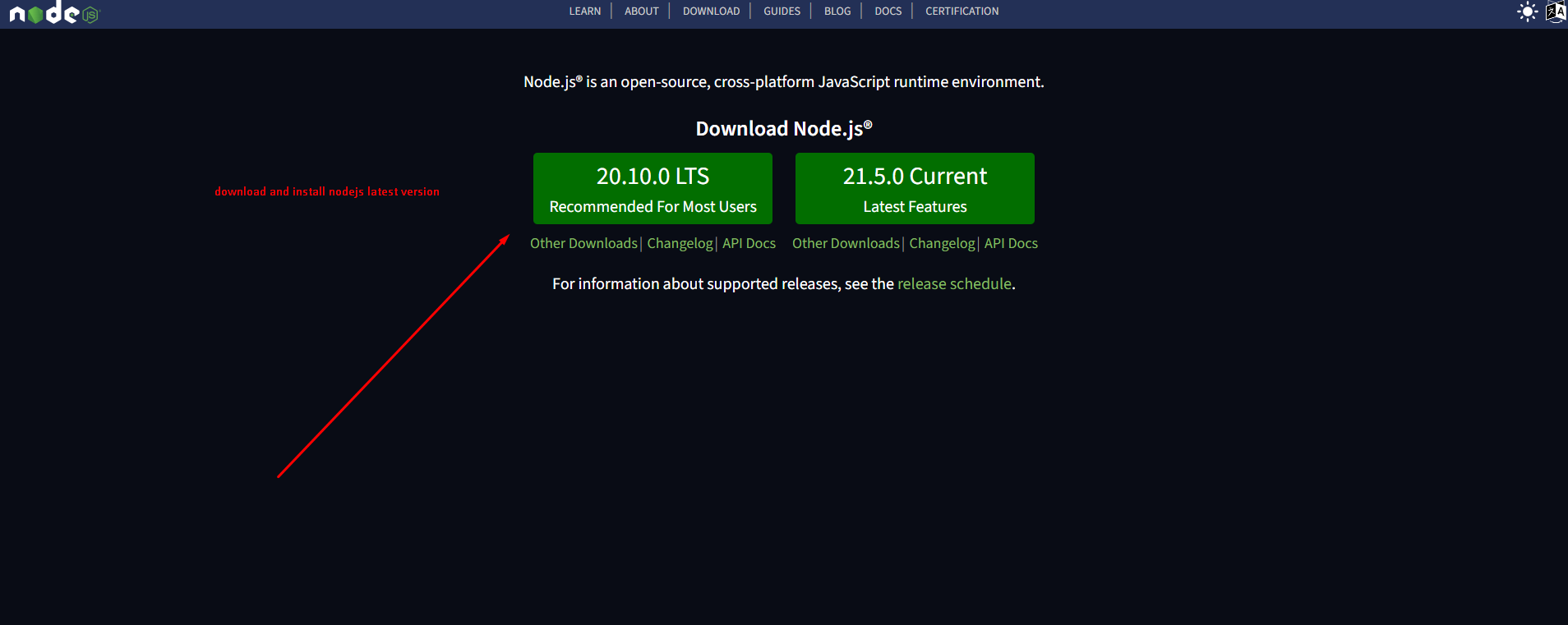
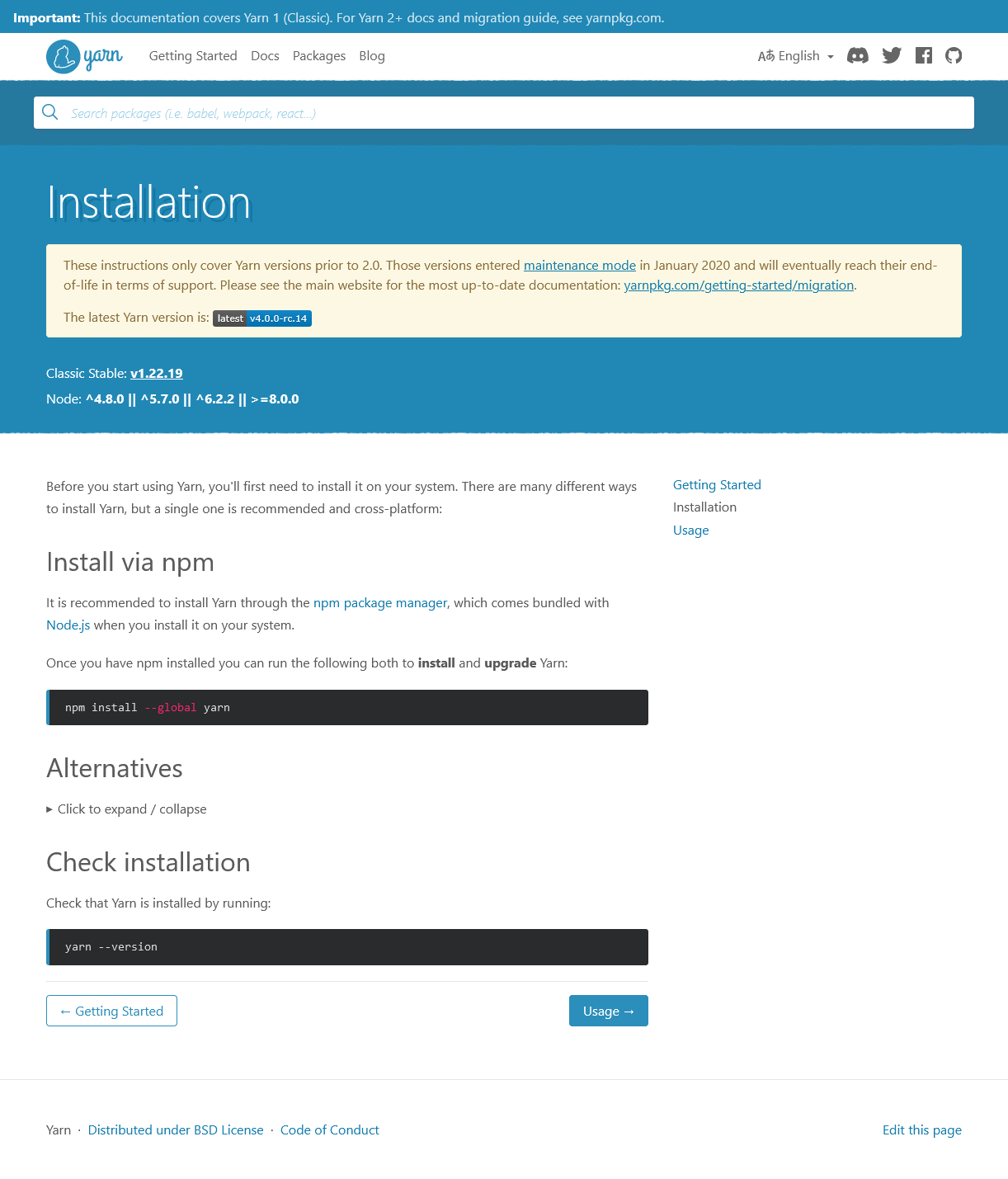
There are system requirements in order to install and setup mykd template and its components properly. Make sure that you are installed node.js and Yarn.
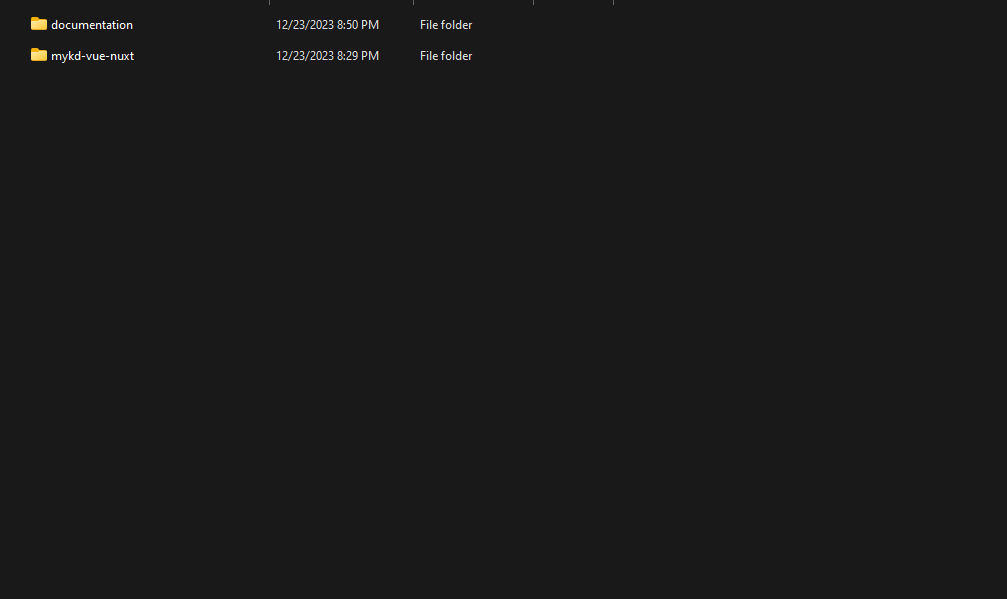
After purchasing mykd template on themeforest.net with your Envato account, go to your Download page. You can choose to download mykd template package which contains the following files:
The contents of the template package downloaded from ThemeForest
mykd - An Vue nuxt Template file. this file you can edit and use for your business.
Documentation - This folder contains what you are reading now :)
mykd Installation
Please follow the instructions how you can install Vue on your hosting:
For npm -
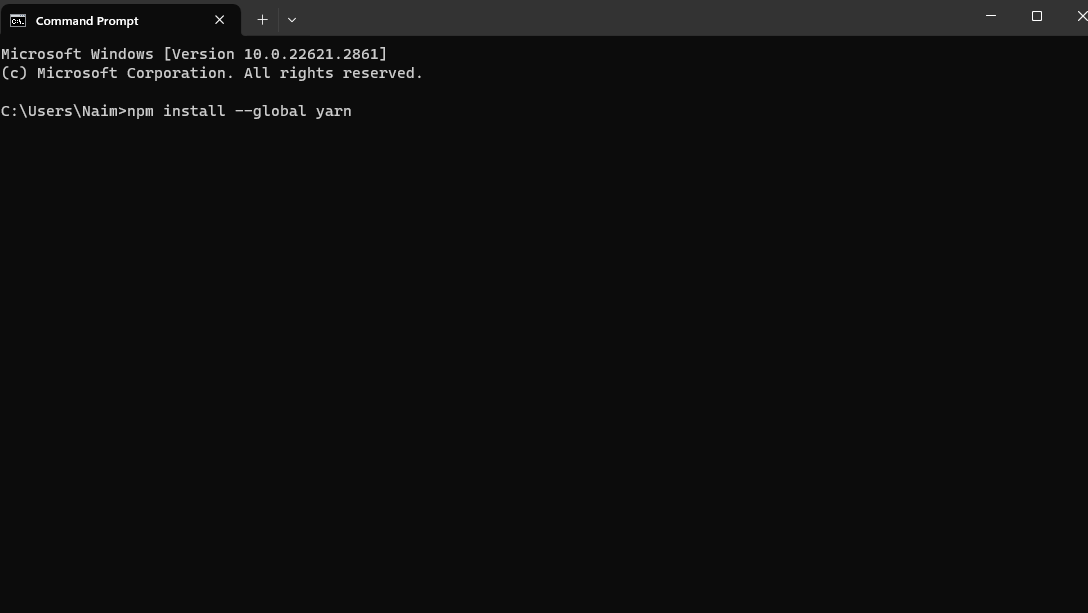
Open you command prompt
npm install or npm install --legacy-peer-deps
npm run dev (will start the dev server at http://loaclhost:3000)
For yarn -
Open you command prompt
yarn install
yarn run dev (will start the dev server at http://loaclhost:3000)
To deploy a Next.js application on Vercel, you can follow these steps: -
Open you command prompt
Sign up for an account on Vercel if you don't have one already.
Connect your GitHub, GitLab, or Bitbucket repository where your Next.js application is hosted.
Import your repository on Vercel and select the Next.js project to be deployed.
Vercel will automatically detect your vue nuxt application and perform the necessary build and deployment steps.
Once the deployment is complete, you'll be able to access your application using the URL provided by Vercel.
Basic Site Settings
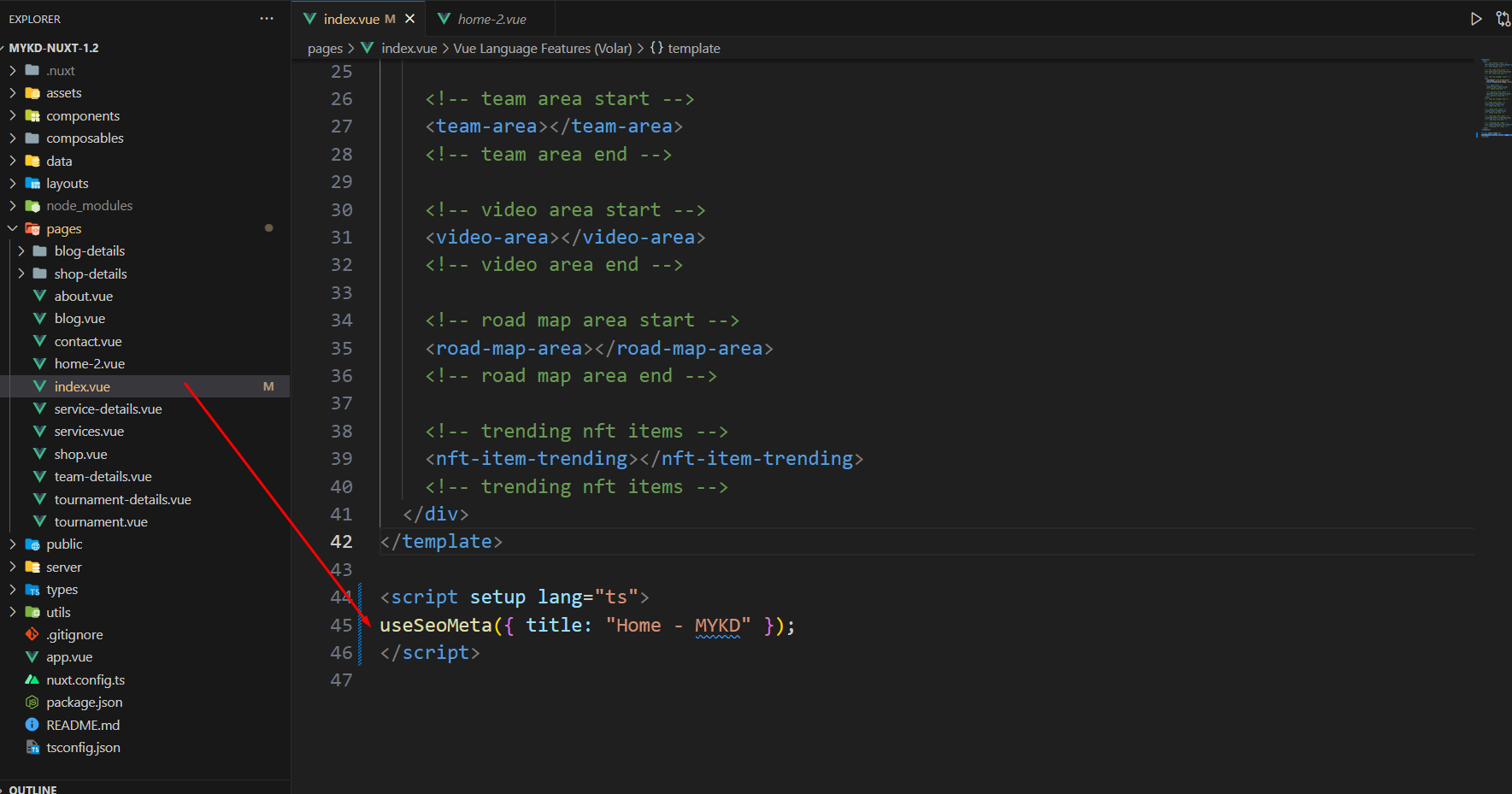
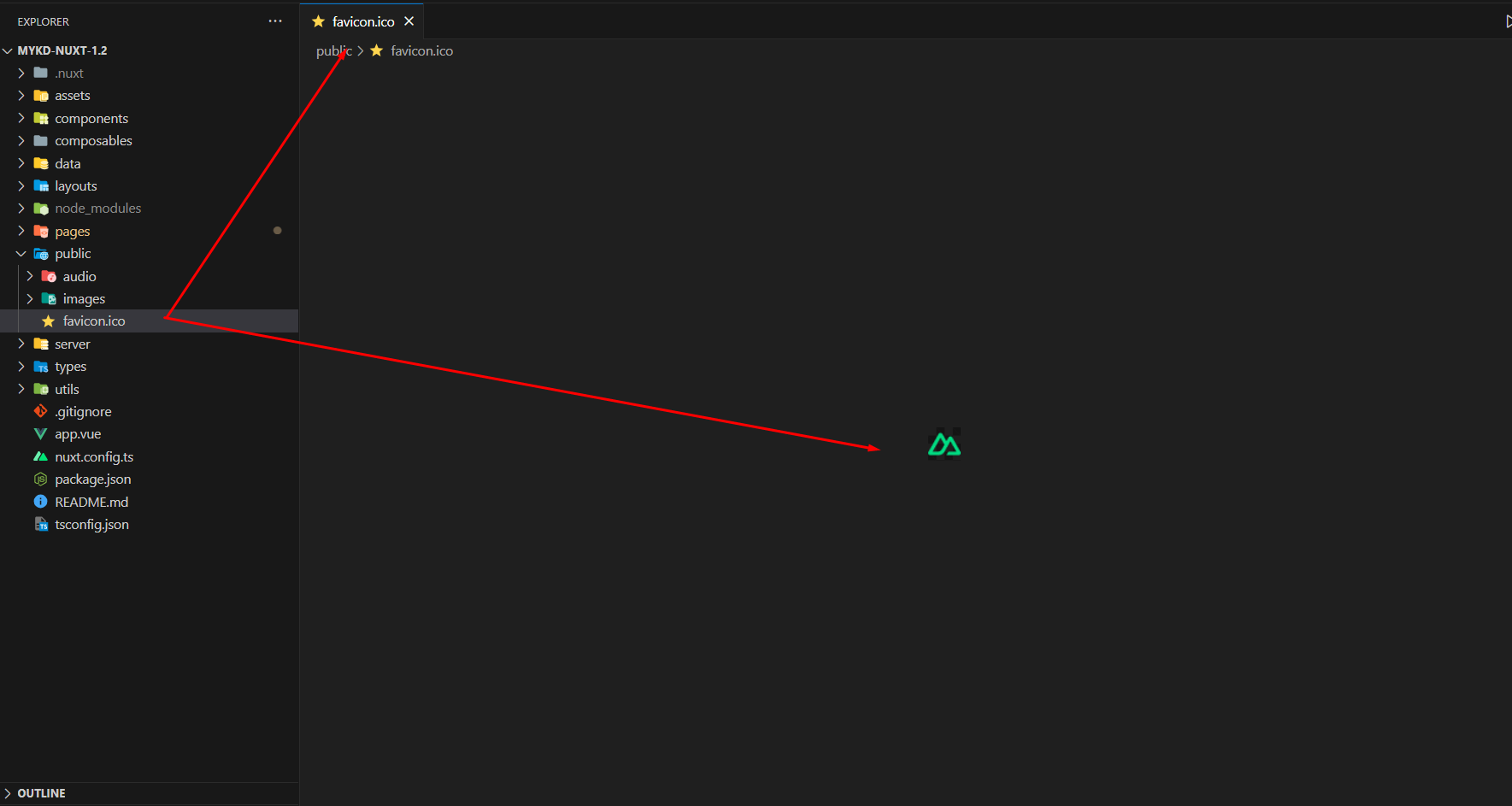
Change Page Title and Favicon
To change your Site title and Favicon open the mykd in your editor and go to the location by following screenshot which are given bellow.
You can change page title hereYou can change favicon here
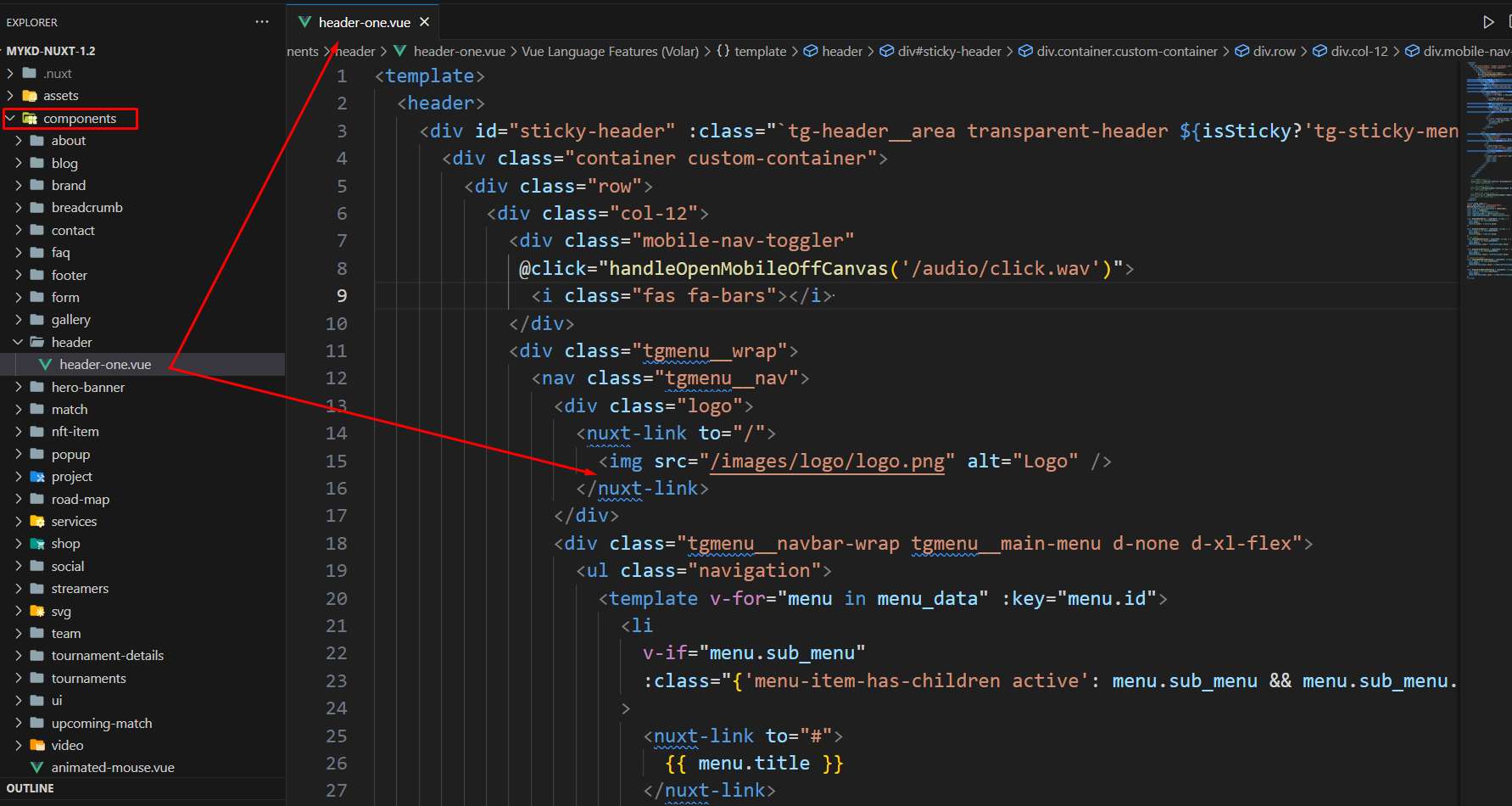
Change Logo
To change logo and customize other header data do the following:
You can change logo here
Customize Menu
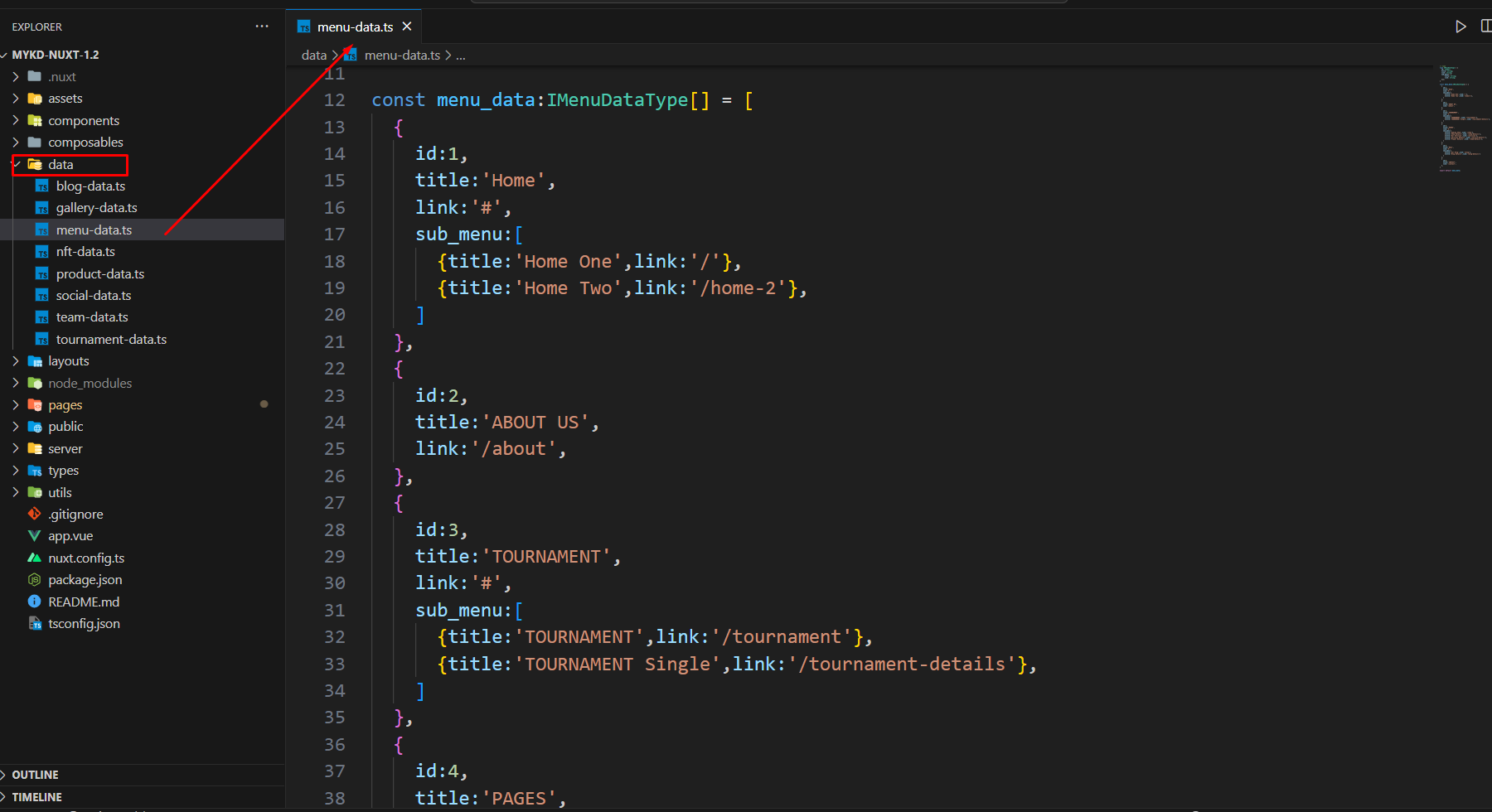
To customize menu do the following:
From the project folder go to data menu-dataOpen the menu you want to use
Then customize the menu
Customize the menu
Customize Footer
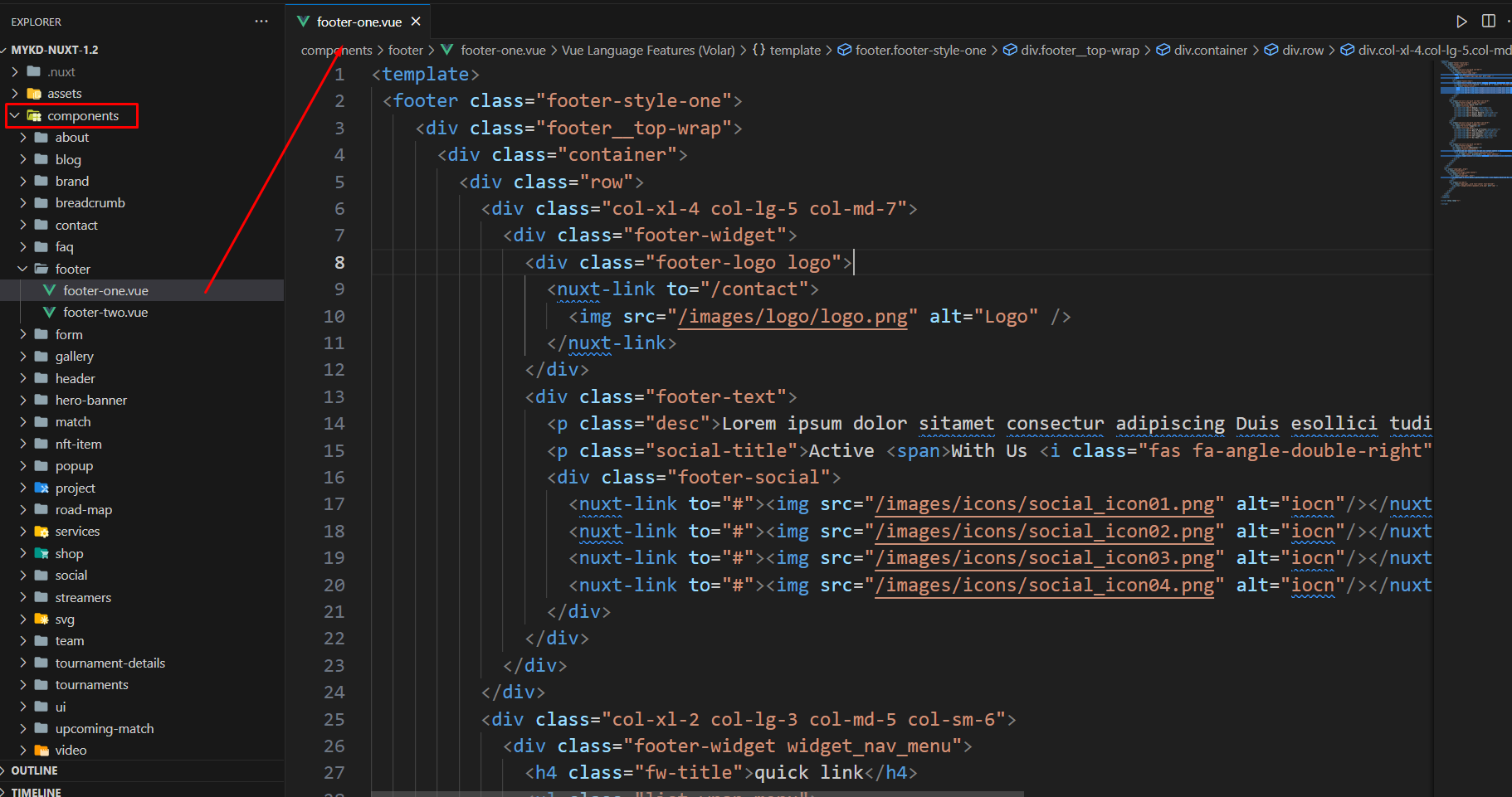
To customize footer data do the following:
From the project folder go to componentsfooterfooter-oneOpen the menu you want to use
Then customize the footer data
Customize the footer
Customize Blog data
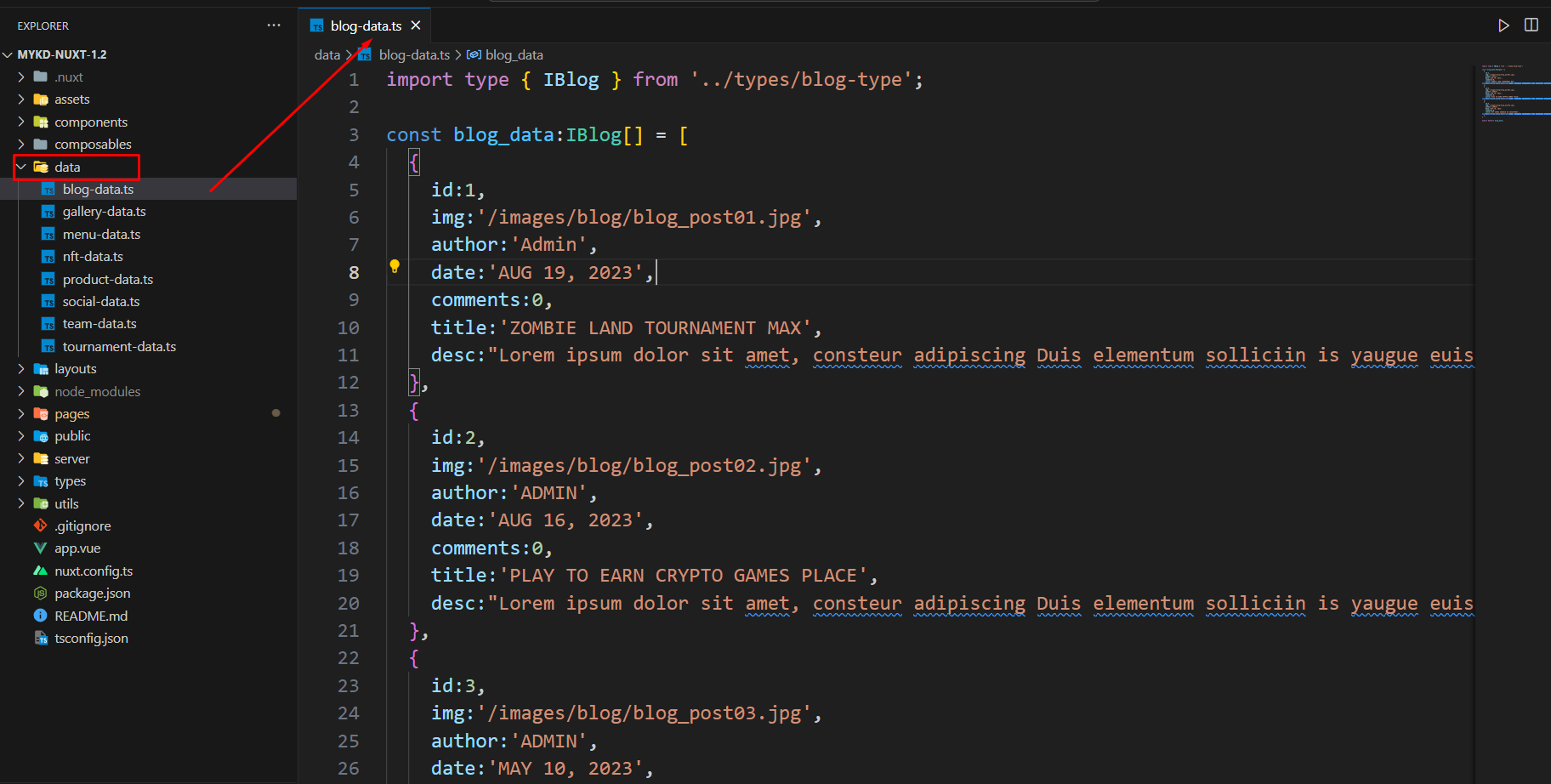
To customize blog data do the following:
From the project folder go to data blog-bataOpen the menu you want to use
Then customize the blog data
Customize the blog
Customize Product data
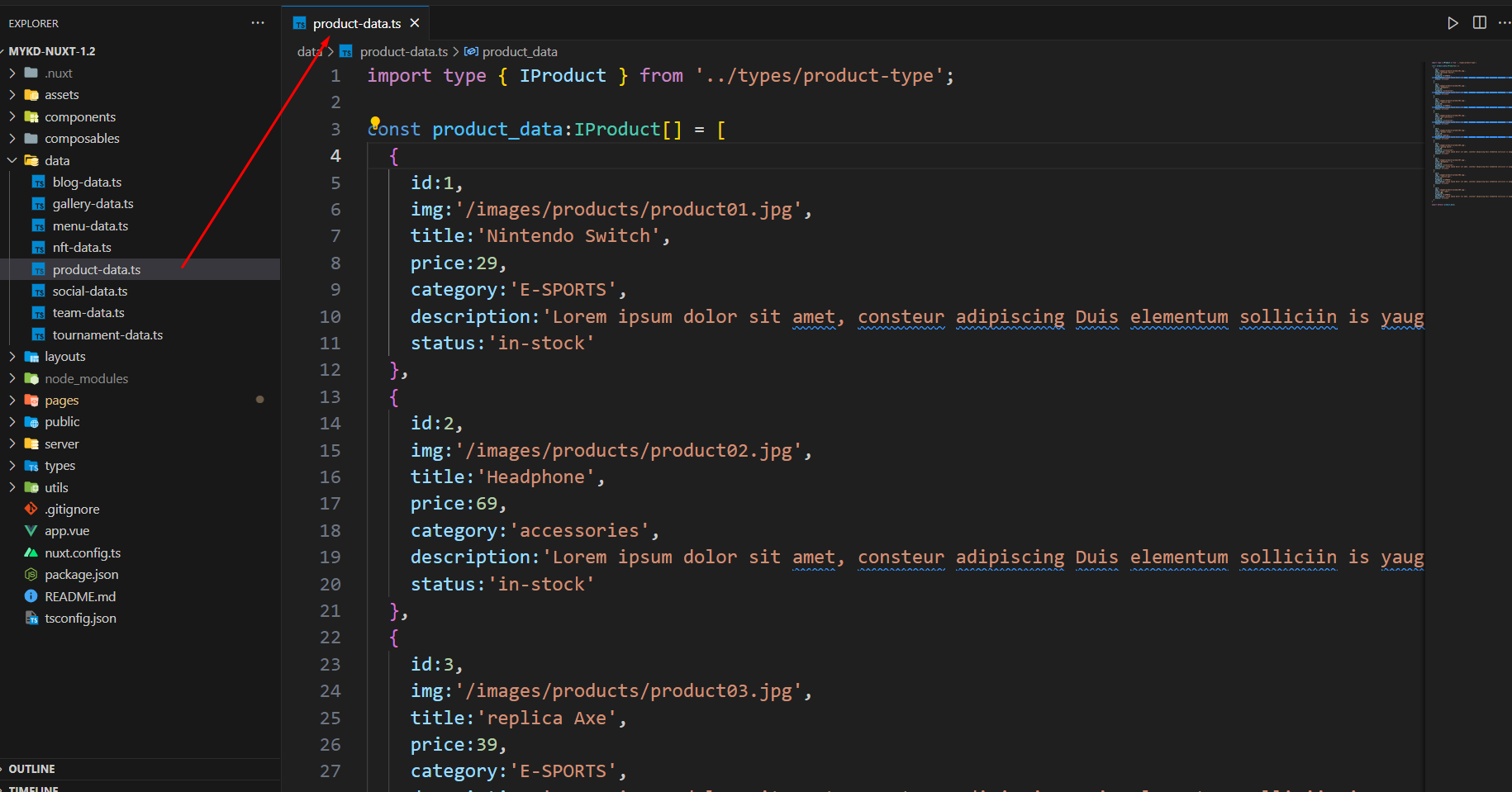
To customize product data do the following:
From the project folder go to dataproduct-dataOpen the menu you want to use
Then customize the product data
Customize the products
Customize Header
We gave you four header layout. you can modify the header markup there.
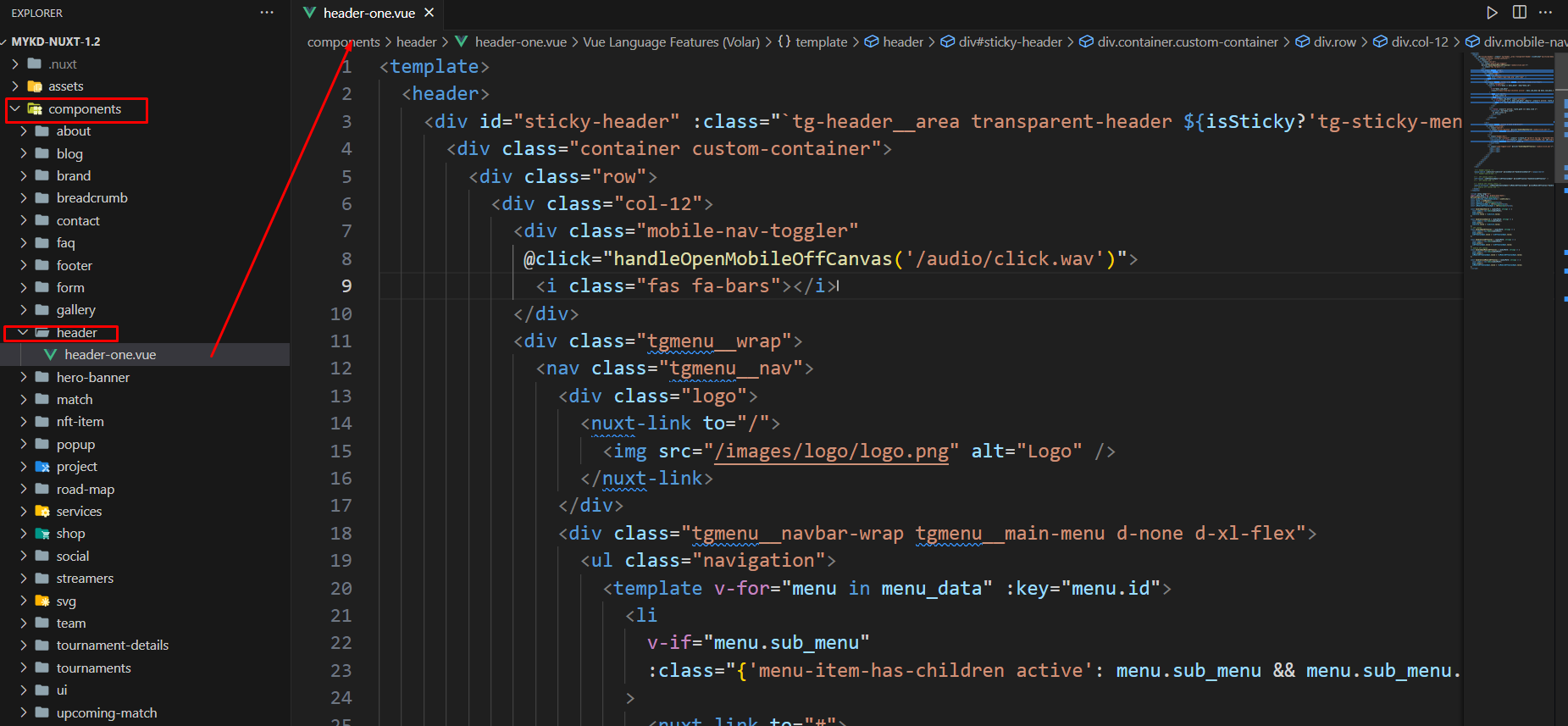
From the project folder go to components headerheader-oneOpen the menu you want to use
Then customize the header
Customize the header
Colors
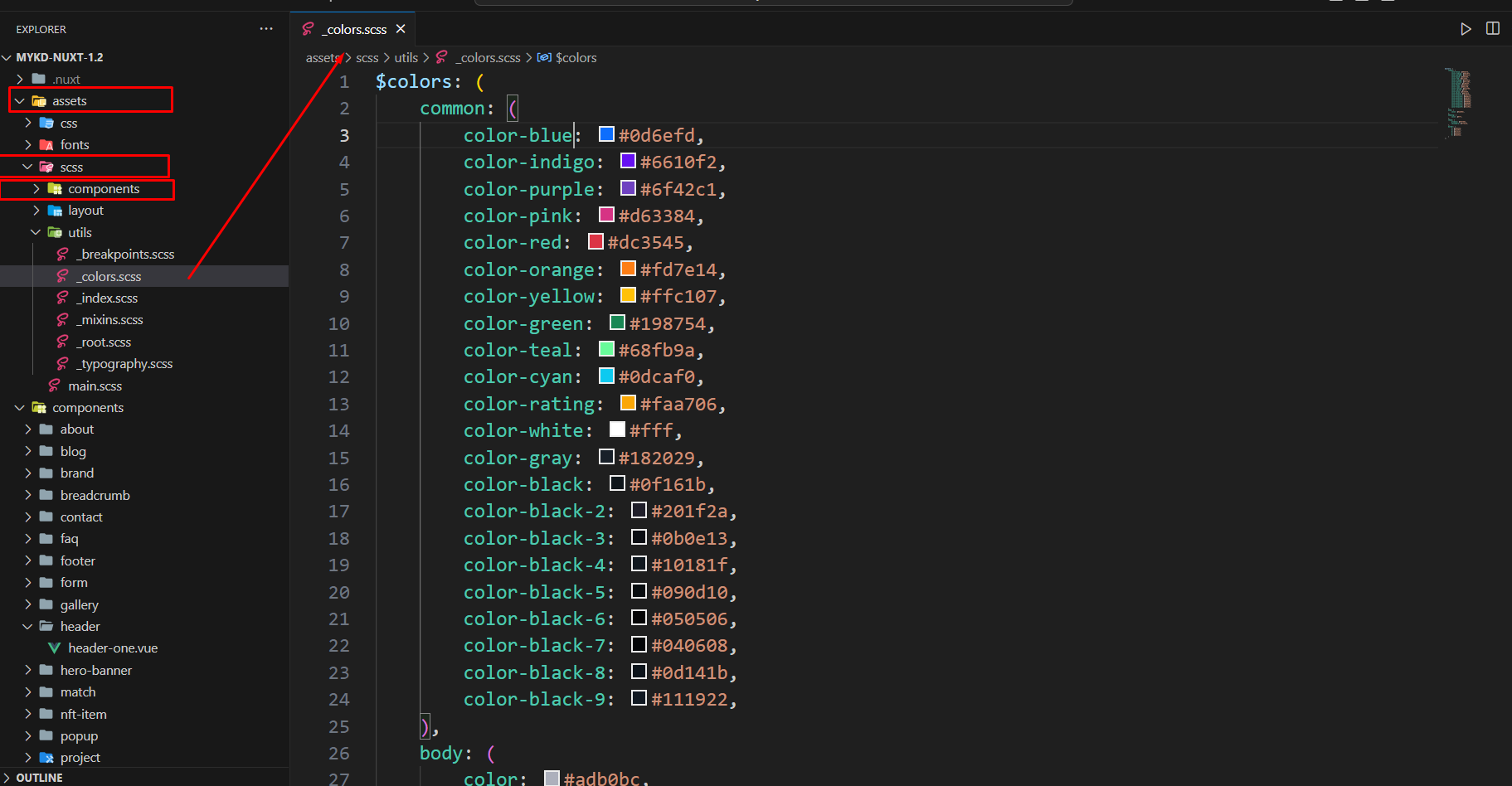
To change color and setting you can change by following this screenshot here.
From the project folder go to assetsscssutils_colors.scssOpen the menu you want to use
Then customize the color data
Customize the color
Typography
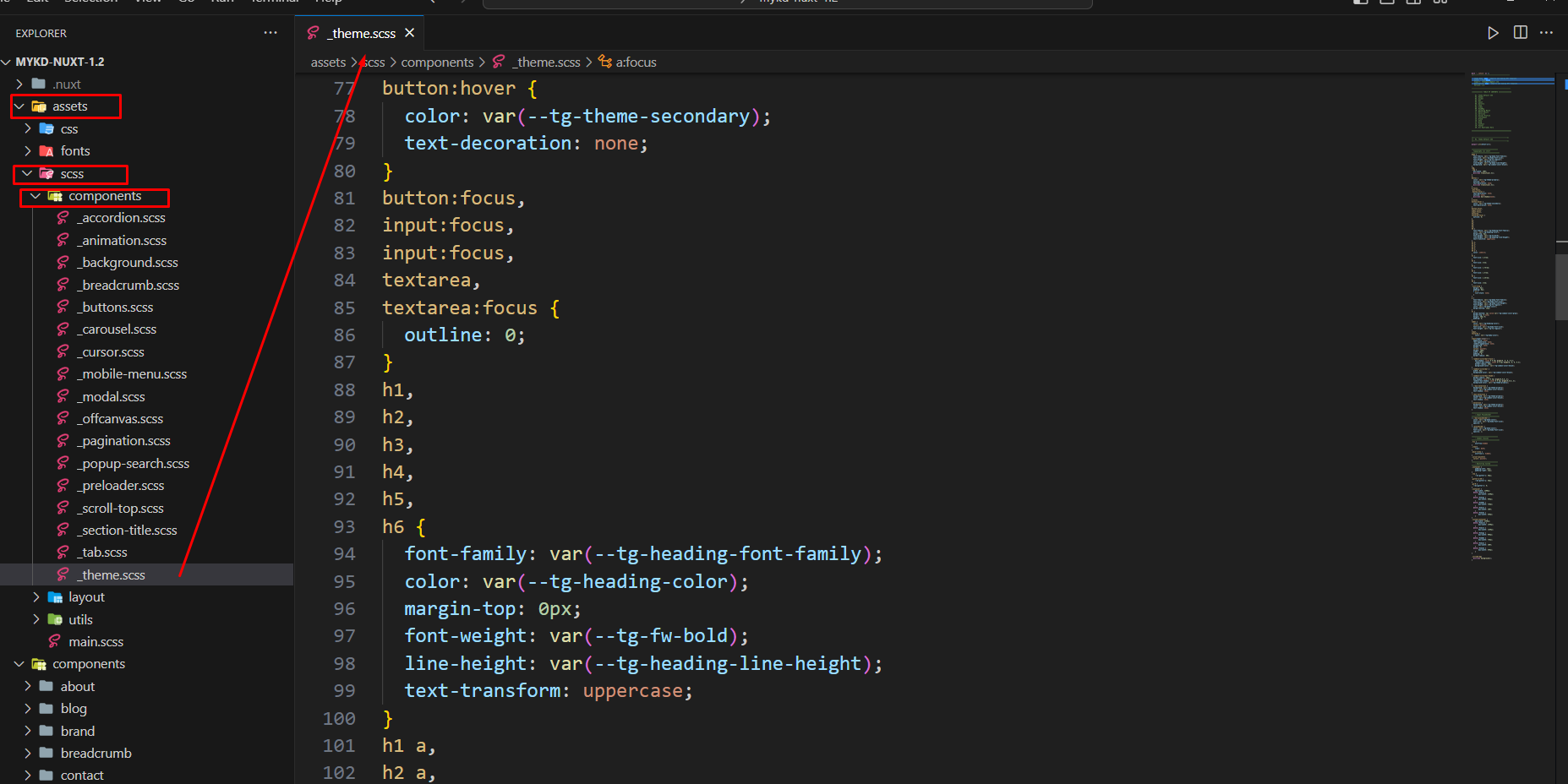
To change Typography and setting you can change by following this screenshot here.
From the project folder go to assetsscss_theme.scssOpen the menu you want to use
Then customize the Typography data
Customize the Typography
Support
If you face any issue please contact us at
Support Ticket. We provide 15 hours real-time support for our customers.